
How to Restart Your Router the Right Way (and Whether Your IP Changes)
How to restart router and modem in the right order, how long to leave them unplugged, restart vs factory reset, and whether your public IP changes afterward.
 Kevin McDonnell 10 min read
In this guide
To restart your router, unplug its power cord (and the modem's, if separate), wait about 30 seconds, plug the modem in first and wait until its lights are steady, then plug the router in. Do not press the pinhole Reset button; that erases your settings. Your public IP usually stays the same after a short restart.
Test it now
Cloudflare edgeRead at the Cloudflare edge from this request. The homepage adds your provider, network type and the VPN, DNS and WebRTC checks.
Show details
How to restart your router and modem in the right order
A restart is a power cycle: everything off, then back on in the order the connection is built. The modem talks to your ISP, the router talks to the modem, and your devices talk to the router. Each one needs the layer below it to be up before it starts. Netgear's power-cycle guide for a modem plus a separate router puts it in five steps; the sequence is the same for any brand.
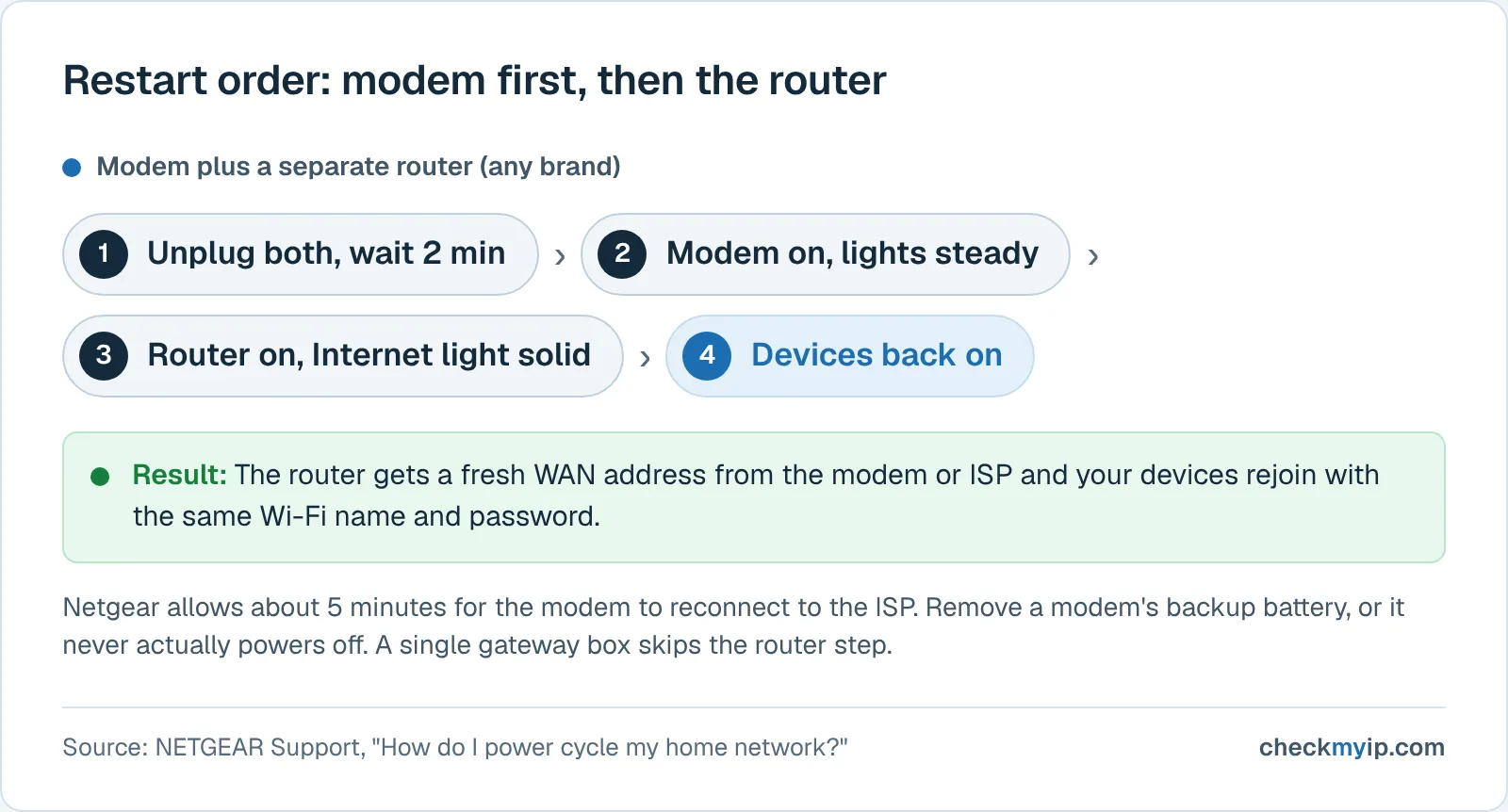
- Turn off or shut down the devices that use the network. Netgear's power-cycle guide includes this step.
- Unplug the modem. If it has a backup battery, take the battery out; Netgear notes that otherwise the modem is not actually off. Wait about 2 minutes.
- Plug the modem back in and leave it alone until its lights stop blinking. Netgear allows about 5 minutes for the modem to reconnect to the ISP, longer with some cable or DSL modems.
- Plug the router back in and wait for its Internet light to go solid (white on current Netgear models, green on older ones). Skip this step if your gateway is modem and router in one box.
- Turn your devices back on, or toggle their Wi-Fi off and on so they ask the router for a fresh address.
Unplugging only the router while the modem keeps running is still a valid router restart; it clears router-side problems in a minute or two. Pull both when "the internet is down," because the fault could be on either side. Before you start, note your public IP on the CheckMyIP homepage so you can compare it afterward.
What a restart actually does
A restart throws away everything the router holds in memory and keeps everything it holds in storage. Settings survive: Netgear says "All of your WiFi settings are saved when you reboot your router," and ASUS says "Rebooting does not affect any settings of the router." Your Wi-Fi name, password, port forwards and admin password are all still there when it comes back.
What does not survive is the working state. The table of active connections (the NAT mappings that pair each outgoing connection with a port on your public address) is emptied, so a stuck connection is simply gone. The DHCP addresses handed out to your devices are rebuilt as devices reconnect, which is why a phone sometimes comes back with a different 192.168.x.x address. The router also re-requests its own WAN address from the modem or the ISP, which is where the public IP question comes in. And the firmware starts from a clean state, which clears memory leaks and crashed services. A restart does not update the firmware.
On the modem side, a restart forces a fresh registration with the ISP's equipment. That takes minutes rather than seconds, and it is why the modem has to come up first: a router that boots before the modem has a link asks for an address, gets no answer and sits on a dead connection until it retries.
How long to leave the router unplugged
Vendor instructions range from 10 seconds to 2 minutes, and none of them is wrong. Netgear's router guide says to unplug for 10 seconds, or to wait 30 seconds after pressing the power button; its whole-network guide says 2 minutes for the modem. Xfinity says one minute for a gateway, AT&T 20 seconds, and BT 10 seconds for the Smart Hub 2 and "a few minutes" for its other hubs. Thirty seconds covers Netgear's and AT&T's router instructions; a minute or two covers the gateway and modem instructions.
The wait makes sure the device has fully powered down (which is why AT&T and Netgear both say to remove a backup battery) and may give the ISP's end time to notice the modem has gone before it reappears. Unplugging for hours to force a new public IP is a different question, covered below; for fixing a connection, longer than a few minutes buys nothing.
Restart vs reset: what the pinhole button does
A restart turns the router off and on; a reset returns it to the state it left the factory in. The two get confused because ISP pages use "reset" loosely (Xfinity's page describes itself as how to "reset (reboot or restart)" a gateway), but on the hardware they are different actions on different controls.
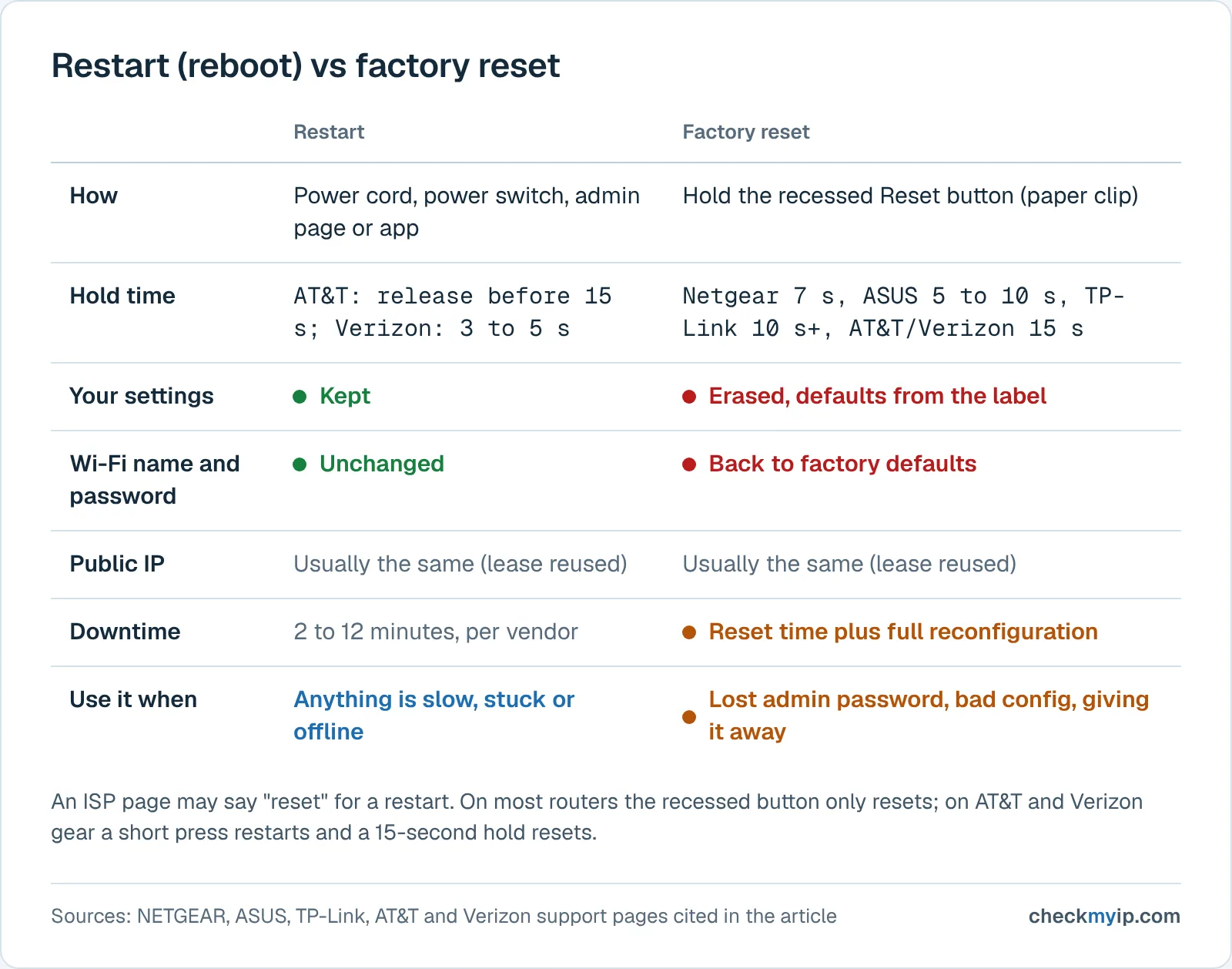
The recessed button on the back labeled Reset or Restore Factory Settings is the factory reset. Netgear says a factory reset "deletes all personalized settings including your user name, password" and the Wi-Fi name and security settings. TP-Link says it "erases all custom settings, including your Internet settings, Wi-Fi settings" and cannot be undone. AT&T says it "will delete any custom settings such as custom Wi-Fi network names and passwords." Afterward you log in with the defaults printed on the label and set everything up again.
The hold time is what separates the two on devices that use one button for both. AT&T's gateways restart if you release the Reset button before 15 seconds and reset if you hold it for at least 15. Verizon's router reboots with a 3-to-5-second press and factory resets at 15 seconds. Netgear says seven seconds with a paper clip, ASUS 5 to 10 seconds until the power LED flashes, TP-Link 10 seconds or more (a press under five seconds on TP-Link's combined WPS/Reset button triggers WPS instead). If your goal is a restart, do not touch this button; use the power cord, the power switch or the admin page.
Reach for a factory reset only when a restart has not helped and you suspect a bad setting, you have lost the admin password, or you are giving the router away. Back up the configuration first if the admin page offers it, as TP-Link and ASUS do.
Does restarting your router change your IP address?
Usually not after a short restart, and whether it can at all depends on how your ISP assigns addresses. Your public IP is handed to your router (or gateway) by the ISP, usually with DHCP, as a lease: RFC 2131 defines the lease as "the period over which a network address is allocated to a client." When the router comes back and asks again, the standard tells the DHCP server which address to prefer. RFC 2131 section 4.3.1 lists the order: first "the client's current address as recorded in the client's current binding," then the client's previous address from an expired or released binding if it is still free, and only then a new address from the pool.
That is why a restart, even one lasting a couple of hours, normally brings the same address back: the server still has your binding and reuses it. The server knows you by the client identifier or, as RFC 2131 puts it, "If the client does not provide a 'client identifier' option, the server MUST use the contents of the 'chaddr' field to identify the client." The chaddr is the hardware (MAC) address of the device that asked. So on a cable connection the change most likely to produce a new public IP is putting a different router behind the modem, not restarting the one you have; some routers let you change the WAN MAC address in their settings for this reason.
Three connection types behave differently:
- Cable (DOCSIS) with a dynamic IP. The behavior above: the same address nearly always comes back for as long as the ISP keeps renewing the lease. Long unplugging sometimes works if the lease expires while you are offline and the pool reassigns the address, but nothing promises it.
- DSL and fiber using PPPoE. The address is negotiated when the PPP session is set up (RFC 1332's IP-Address option lets the client request that "the peer provide the information"), so a new session can get a new address. Whether it does is ISP policy; some pin the address to the account.
- CGNAT (common on mobile networks and some fiber and cable ISPs). RFC 6888 defines a carrier-grade NAT as a function "used to share the same IPv4 address among several subscribers." The IPv4 address websites see is picked from the ISP's pool at the carrier NAT, not assigned to your router, and "subscribers have limited or no control over the CGN." A restart changes nothing you can rely on; your router's WAN address is usually in the 100.64.0.0/10 range, and the CGNAT guide explains how to recognize it.
A static IP from your ISP never changes with a restart; that is what you are paying for. An IPv6 prefix is leased too, and ISPs differ on whether it stays the same across a restart.
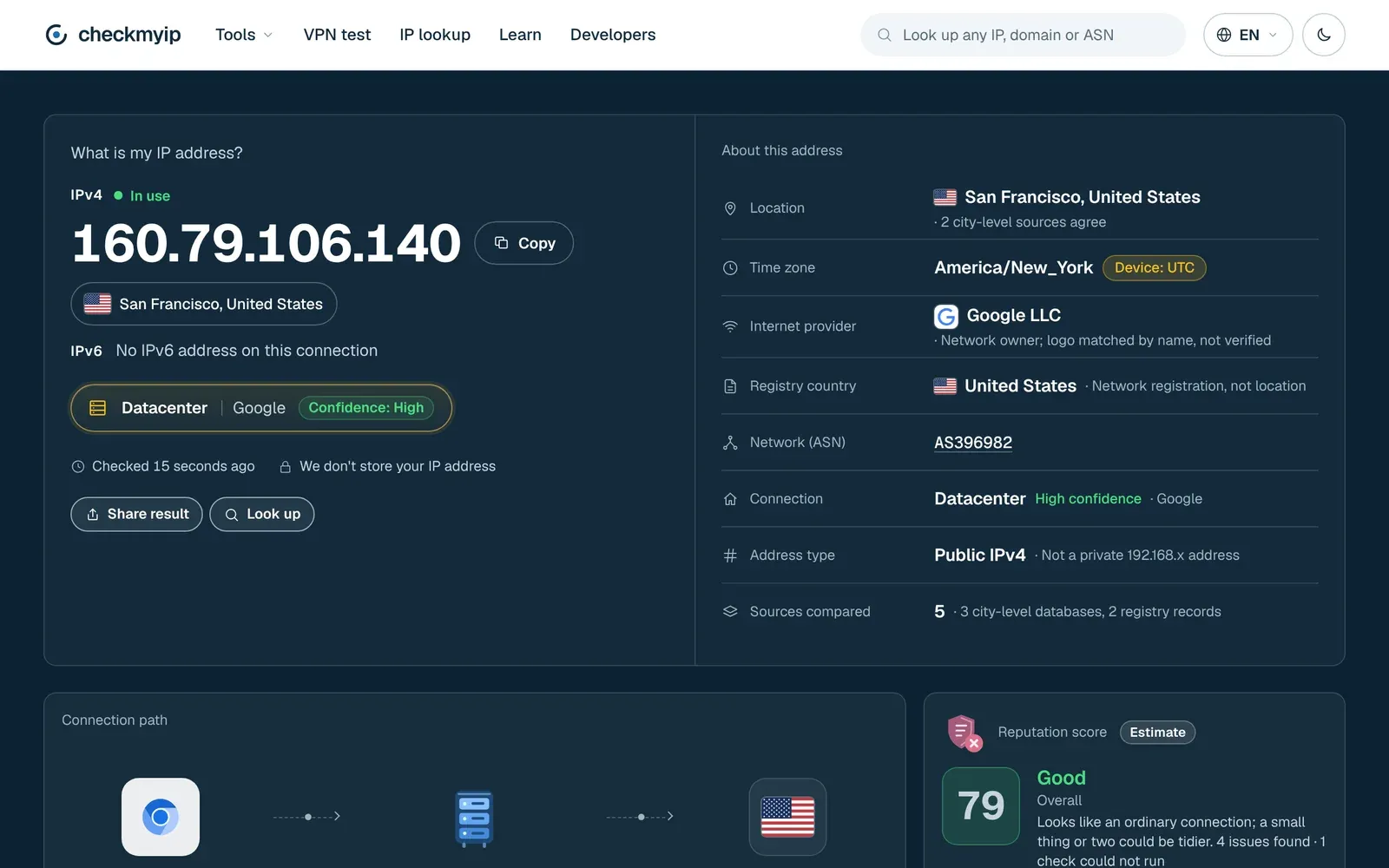
To see what happened on your line, open the CheckMyIP homepage before and after. It shows your current IPv4 and IPv6, the ISP and ASN, and whether the connection looks residential, mobile or datacenter; an unchanged address means your ISP kept the binding. If you need a different address, the guide to changing your IP address covers the options that work, and the DHCP guide covers leases on the LAN side.
When a restart helps and when it will not
A restart fixes problems that live in the router's memory. It does not fix problems in the wiring, the signal, the plan or the far end.
| Symptom | Restart helps? | What else to check |
|---|---|---|
| Internet light off or red, nothing connects | Often, if the modem comes up first | Cables, ISP outage page, the modem's own lights |
| Wi-Fi connected, "no internet" on every device | Often; the router lost or never got its WAN address | Plug a laptop straight into the modem to isolate the router |
| One device cannot connect, others fine | Rarely | Forget and rejoin the network on that device, check its IP |
| Slow in the evening, fine at 7 a.m. | No; that is congestion or the plan | Run the speed test wired, at both times |
| Slow after weeks of uptime, fine after a reboot | Yes; schedule a reboot if the router offers it | Firmware update |
| Games show strict or double NAT | No; NAT type is configuration, not state | The double NAT guide |
| Lost the admin password | No | Factory reset, then reconfigure |
The second row is the common one. If a laptop plugged directly into the modem gets online while the router does not, the router failed to get or renew its WAN lease, and the ordered restart above is the fix. If the laptop also fails, the problem is the modem, the line or the ISP, and restarting the router will not help.
How to restart from the admin page or the app
Every current router has a reboot control in its web interface and most have one in the vendor app, which works when you are not at home. The menu names below are from each vendor's current support pages (ASUS's FAQ was last updated in December 2024).
- Netgear. Browse to routerlogin.net, sign in as admin, then go to Advanced > Reboot; on Nighthawk Pro Gaming models it is behind the three-dot menu at the top right. In the Nighthawk app, tap Connect remotely, the home icon, then REBOOT. Netgear says the reboot can take up to 2 minutes.
- ASUS. Open the router's LAN address or asusrouter.com, sign in and click Reboot at the top of the page. In the ASUS Router app it is Settings > System Settings > Reboot. ASUS allows about 3 minutes until the power LED is steady.
- Xfinity gateway. In the Xfinity app, tap the WiFi icon, Troubleshoot, then Restart your Gateway (rented gateways only). Xfinity says the restart takes up to 12 minutes.
- AT&T hub or gateway. In Smart Home Manager, select the network (Wi-Fi) icon, then Restart Wi-Fi, then Restart. AT&T allows up to five minutes for it to come back online.
- Verizon router. A 3-to-5-second press of the rear Reset button reboots it (longer is a factory reset); wait until the Internet light is steady white.
- BT Home Hub 3, 4 and 5 (older hubs). Press and release the Restart button on top of the hub, or use the rear Power button; wait until the central light glows steady blue.
The router's web interface is at its LAN address, typically 192.168.1.1 or 192.168.0.1; the find your router's IP address guide shows how to read it from any device if the vendor hostname does not resolve. An admin-page reboot restarts the router only. If the modem is the problem, you still need the power cord, or your ISP's app where it offers a remote gateway restart.
Sources
- RFC 2131: Dynamic Host Configuration Protocol
- RFC 6888: Common Requirements for Carrier-Grade NATs (CGNs)
- RFC 1332: The PPP Internet Protocol Control Protocol (IPCP)
- NETGEAR Support: How do I power cycle my home network?
- NETGEAR Support: How do I power cycle or reboot my NETGEAR router?
- NETGEAR Support: How do I reboot my NETGEAR router using the router web interface?
- NETGEAR Support: How do I perform a factory reset on my NETGEAR router?
- ASUS Support: [Wireless Router] How to Reboot your ASUS Router?
- ASUS Support: [Wireless Router] How to reset the router to factory default setting?
- TP-Link Support: How to Factory Reset Your TP-Link Router
- Xfinity Support: Troubleshooting your cable modem (restart your Xfinity Gateway, modem, or router)
- AT&T Support: Restart or reset your All-Fi Hub or Wi-Fi gateway
- Verizon Support: Verizon Router FAQs
- BT Help: How do I restart my BT Hub?
Questions
Does unplugging a WiFi router restart it?
Yes. Pulling the power cord and plugging it back in is a full restart; Netgear and ASUS both list it as a valid reboot method. Settings are kept. If the device has a battery backup, remove the battery too, or it never actually powers off. The only thing to avoid is the recessed Reset button, which restores factory defaults.
How long does a router reset take?
A plain restart is quick: Netgear says up to 2 minutes for the router, AT&T up to five minutes for the gateway to come back online, and Xfinity up to 12 minutes for a gateway restart. A factory reset takes about as long (AT&T allows up to 10 minutes), plus the time to set up Wi-Fi again.
Will I lose my internet if I reset my router?
A restart drops the connection for a few minutes and then everything reconnects with the same Wi-Fi name and password. A factory reset (holding the pinhole button) also drops the connection, but afterward the Wi-Fi name, password and any custom settings are gone, so devices stay offline until you set the router up again.
How do I reset a fiber router?
The same way as any other. Restart it by unplugging the power for 20 to 30 seconds; AT&T's fiber gateways (BGW320, BGW210 and others) follow that procedure. To factory reset, hold the red Reset button for at least 15 seconds; releasing earlier only restarts. Write down your Wi-Fi name and password first, because the reset deletes them.
How do I reset a Spectrum modem and router?
Use the cable sequence in this guide: unplug both, wait, power the modem first and wait for its lights to settle, then the router. Check the light guide for your model in its manual or on Spectrum's support site before deciding the modem is online. The recessed button on the router is a factory reset, not a restart.
Back to your own address: my IP address