How to Find Your TV's IP Address: Roku, Fire TV, Samsung, LG, Apple TV
How to find Roku IP address with or without the remote, plus Fire TV, Samsung, LG, Apple TV and Google TV menu paths, the router list and DHCP reservation.
 Kevin McDonnell 10 min read
In this guide
To find your Roku IP address, press Home and open Settings > Network > About; the address is listed there. Fire TV shows it under Settings > My Fire TV > About > Network, Samsung under Network Status > IP Settings, and any TV appears in your router's device list. These are private LAN addresses, not your public IP.
Test it now
Cloudflare edgeRead at the Cloudflare edge from this request. The homepage adds your provider, network type and the VPN, DNS and WebRTC checks.
Show details
How to find your Roku IP address with the remote
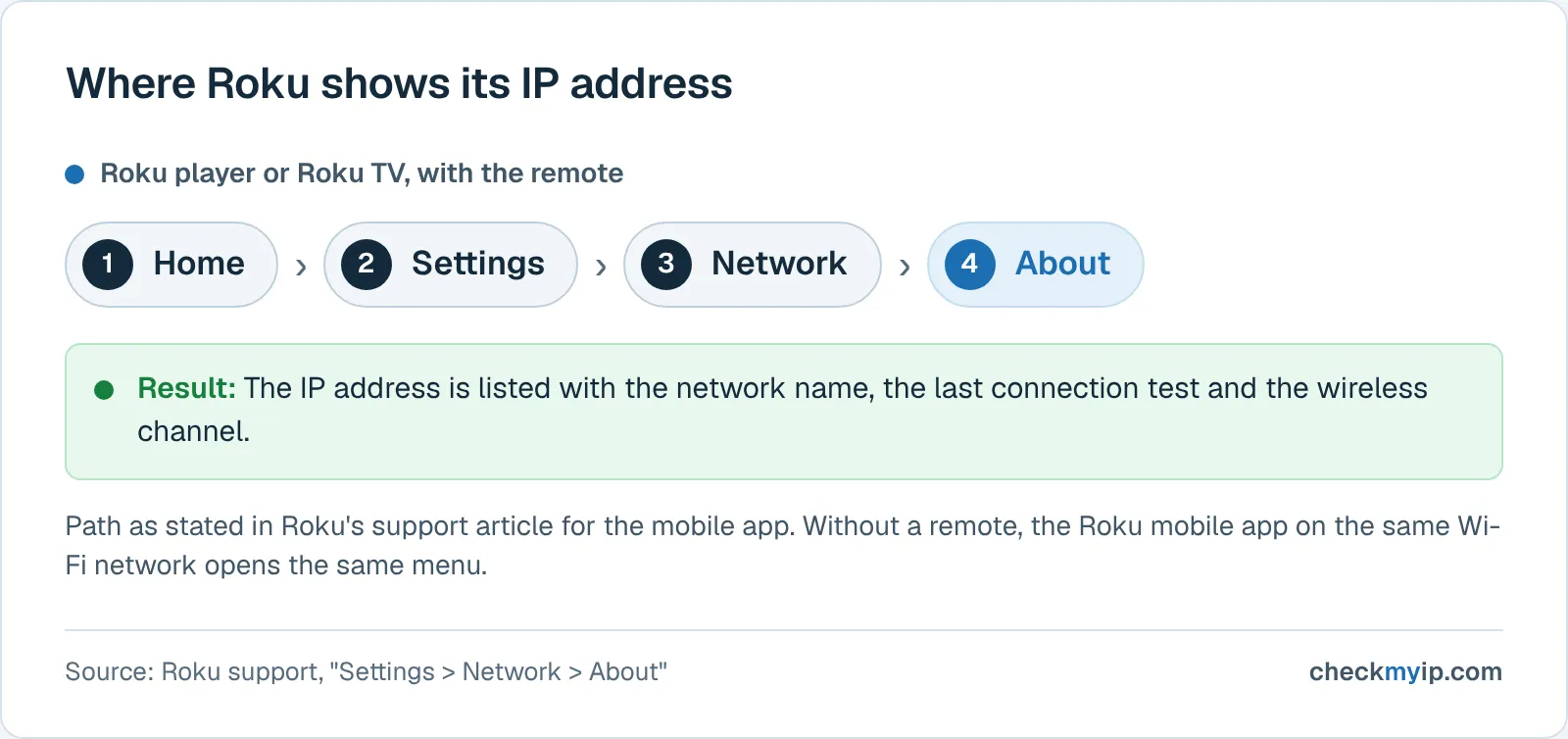
Roku keeps the address on the About screen of the Network menu. Roku's support article for the mobile app states it in one line: "Find the IP address of your Roku device by going to Settings > Network > About." On a Roku player or Roku TV:
- Press the Home button on the Roku remote.
- Scroll down the left-hand menu and select Settings.
- Select Network.
- Select About. The IP address is listed with the network name, the result of the last connection test and the wireless channel.
Copy the address exactly; 192.168.1.37 and 192.168.1.3 are different devices.
The address will be a private one. Roku's app article says devices on your network "should be using a private IP address" and lists the ranges 10.0.0.0 to 10.255.255.255, 172.16.0.0 to 172.31.255.255 and 192.168.0.0 to 192.168.255.255, the ranges defined in RFC 1918 (the Roku page misprints the end of the second one). An address outside those ranges means, in Roku's words, that no router is handing out addresses, which usually means the device is plugged straight into a modem.
How to find your Roku IP address without the remote
Two methods cover almost every case.
- The Roku mobile app. Install the official Roku app, connect the phone to the same Wi-Fi network as the Roku, and the app discovers the device and offers an on-screen remote. Roku's requirement is explicit: "Your Roku streaming device and your phone or tablet need to be on the same Wi-Fi network to connect." Use the app's remote to open Settings > Network > About. Roku lists three reasons the discovery screen stays empty: a VPN on the phone, a dual-band router whose 2.4 GHz and 5 GHz networks have different names, and, on iOS 14 or later, the Roku app's Local Network permission being off.
- The router's connected-devices list. Every router keeps a table of the devices it has given addresses to, under a heading such as Attached Devices, Device List or DHCP Clients. Sign in to the router's admin page (the router IP address guide explains how to find the login address) and look for an entry named Roku, a Roku model name, or the name you gave the device during setup. The IP and MAC address are printed next to it. This works with no remote, no app and no picture, as long as the Roku is powered on and connected.
If the Roku has also lost its network connection, neither method can find it, because a device without a connection has no address.
How to find the IP address on Fire TV and Fire TV Stick
Amazon's developer documentation gives the path and a warning worth repeating. The path: "From Settings, go to Device (or My Fire TV) > About > Network. Make a note of the IP address listed on this screen." The warning: "You do not get the IP address from the Settings > Network screen." Fire TV has two screens named Network; the top-level one picks a Wi-Fi network, and the one nested under About shows the address.
- From the Fire TV home screen, open Settings (the gear icon).
- Select My Fire TV. On some Fire OS versions the item is labeled Device, which is why Amazon writes "Device (or My Fire TV)".
- Select About.
- Select Network. The IP address is listed in the pane on the right.
Without the remote, the Fire TV mobile app works like the Roku app on the same Wi-Fi network, and the router's device list shows the stick under an Amazon or Fire TV name.
How to find the IP address on a Samsung TV
Samsung's menu changed with the 2022 model year, and Samsung's support page on verifying network status gives both paths. That page also says it describes TVs sold in Canada and that settings may vary for models sold elsewhere, so treat the labels as the common case.
For 2022 and newer models (Samsung's page):
- Using the remote, open the Settings menu and select All Settings.
- Go to Connection, then select Network.
- Select Network Status. Samsung draws the TV, the router and the internet with blue dots for a working link and red X marks for a failed one.
- Select IP Settings. Samsung describes this option as the place to access and modify the TV's IP and DNS settings; the current address is read here.
For 2021 and older models (same Samsung page):
- Press Home on the remote to open the Smart Hub, then use the directional pad to select Settings.
- Select General, then Network.
- Select Network Status.
- Select IP Settings.
The same screen can switch the TV to a manual address; the reservation method further down is the better way to stop the address changing.
How to find the IP address on an LG TV (webOS)
LG's menu depends on the webOS version, and LG's US support page on manual DNS settings lists the entry points by version. The screen it describes is where the TV's IP configuration lives, because the DNS fields LG tells you to edit sit in it.
- webOS 6.0 or later (2021 and newer): press the Settings button, then All Settings > General > Network > Internet Connection. Choose Wi-Fi Connection and select Advanced Wi-Fi Settings, or choose Wired Connection (Ethernet) and select Edit.
- webOS 5.0 (2020): All Settings > Connection > Network Connection Settings.
- webOS 4.5 (2019): All Settings > Connection.
- webOS 4.0 or earlier (2018): All Settings > Network.
LG's Canadian troubleshooting page for Wi-Fi drops uses a shorter form of the route, Settings > Network > Wi-Fi Connection > Advanced Wi-Fi Settings, for IPv6 and DNS. LG documents that screen for changing settings, not as a "show my IP" page, so if your model's labels differ, the router's device list gives the same answer; the TV is listed under an LG or webOS name.
How to find the IP address on Apple TV
Apple's tvOS 27 user guide puts network settings under Settings > Network. Its instruction is "Go to Network, then select Wi-Fi," and it adds that you can "select the current Wi-Fi network for additional configuration options."
- Open Settings on the Apple TV home screen.
- Select Network. The Wi-Fi item leads to the list of networks; Ethernet is not available on the Apple TV 4K (3rd generation) Wi-Fi model, per Apple's guide.
- Select the connected network for its configuration options, where the connection's address settings are kept.
Apple's guide does not list the fields on that screen, so if you cannot find the address, use the router list; the device appears as Apple TV or by the room name you gave it. Apple's network-troubleshooting article explains the number's origin in one line: DHCP is the router feature that assigns IP addresses to the devices on the network.
How to find the IP address on Android TV and Google TV
Google's Android TV documentation gives the path through the ordinary settings menu. Its steps: "On the Android TV, in the Device row, select Network > Wi-Fi, and select the connected network," then "Select Status info and note the IP address."
- Open Settings from the home screen.
- Select Network. On Google TV and recent Android TV builds the label is longer, such as Network & Internet; it is the only network entry in Settings.
- Select Wi-Fi, then the network you are connected to. For a wired connection, open the Ethernet entry instead.
- Select Status info. The IP address is listed there.
Other brands running Android TV or Google TV use the same system menu with their own names on some items; if yours does not match, use the router list.
Finding any TV's IP address from the router
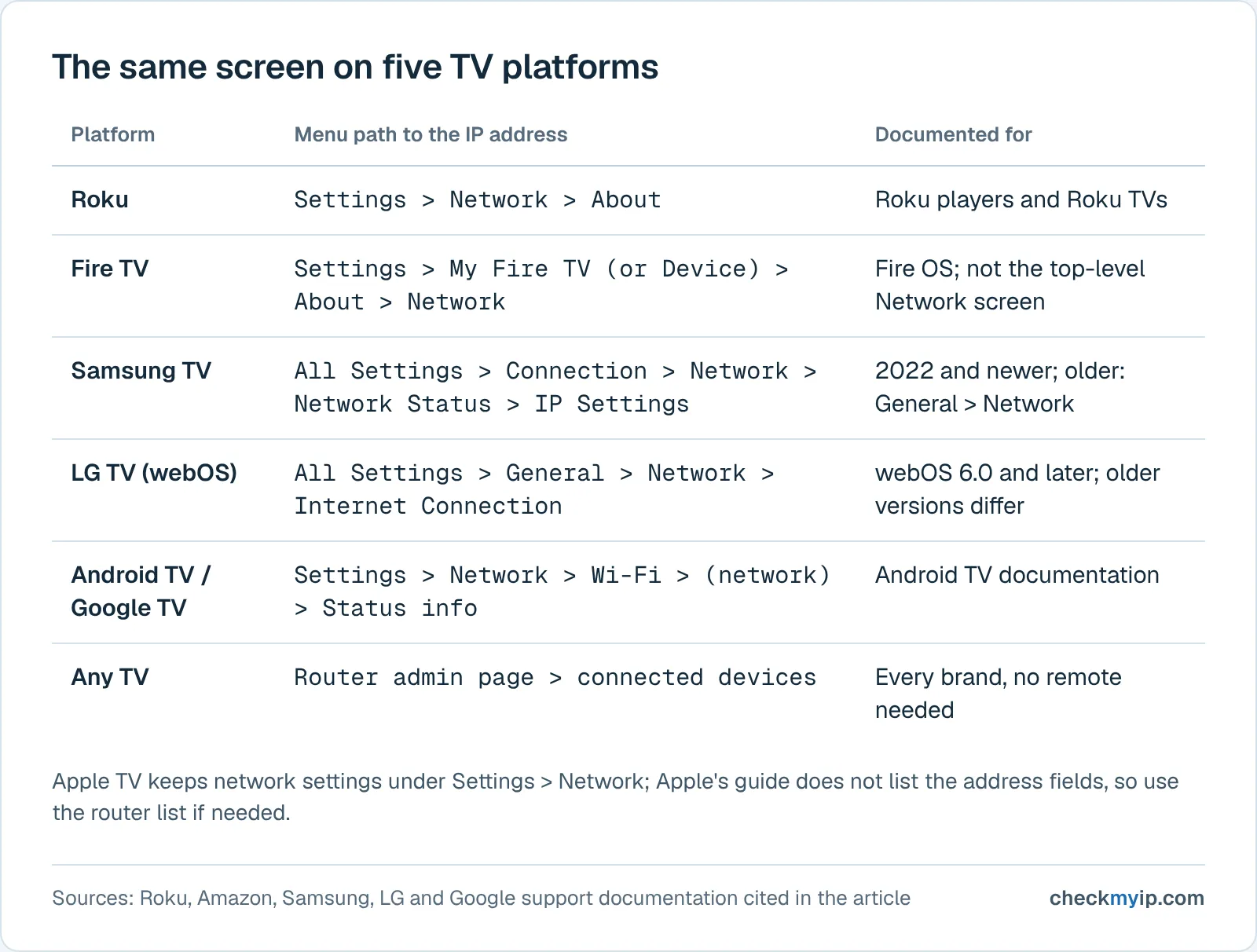
The router method works for every brand, with or without a remote, and it also shows the MAC address a reservation needs.
- Find the router's login address. On most home networks it is 192.168.0.1, 192.168.1.1 or 10.0.0.1; the router IP address guide shows how to read it on Windows, Mac, iPhone or Android, and the local IP tool shows the private address of the device you are browsing from, which sits in the same range as the router and the TV.
- Sign in to the router's admin page in a browser.
- Open the connected-devices list (Attached Devices, Device List, DHCP Clients, LAN Status or similar). TVs and sticks usually appear under a recognizable name: Roku, Fire TV, Samsung, LG webOS, Apple TV, Chromecast. If a device shows only a MAC address, match it against the MAC on the TV's own network screen.
Private vs public: which IP address your TV actually has
The TV has a private address of its own and shares the public one with the whole house.
| Address | Example | Where you see it | Who assigns it | Reachable from the internet |
|---|---|---|---|---|
| TV's private (LAN) IP | 192.168.1.37 | TV's network menu, router device list | Your router, via DHCP | No |
| Router's private (LAN) IP | 192.168.1.1 | Gateway field on the TV, router label | Router default or your choice | No |
| Home's public (WAN) IP | one address per household | CheckMyIP homepage, router's status page | Your internet provider | Yes |
The address in the TV's menu is private, from the RFC 1918 ranges above, and valid only on your network: two households can both have a TV at 192.168.1.37, and nothing on the internet can send a packet to it. It is what you type into a remote app's manual-connect box and what a port-forwarding rule points at.
The public address belongs to the router, not the TV. When the TV streams a film, the service sees the public address, and the router remembers which inside device asked (NAT). The CheckMyIP homepage shows that public address, with the provider and connection type behind it, when opened on any device on the same network. The public vs private IP guide covers the two layers in depth, and the local IP tool does the opposite job: it shows the private address of the browser you open it in, which tells you what range to look for in the router list.
Why the TV's IP address changes, and how to reserve it
The TV did not pick its address. Your router runs a DHCP server, and RFC 2131 describes the exchange: a client joining the network asks for configuration, the server offers an address with a lease time, and the client must renew before the lease expires or ask again when it reconnects. A router usually gives the same device the same address while the lease lives, but after a long power-off, a router reboot or a firmware update the address can be reissued, and the TV returns on a new one. Remote apps set to connect manually then point at the old number. The DHCP guide covers leases in detail.
The fix is a DHCP reservation, labeled static lease, address reservation or IP binding in some routers. You tell the router that one MAC address always receives one IP; the TV keeps asking the normal way and the router keeps giving the same answer. Roku's networking articles offer no manual IP setting on the device, so the reservation is how you pin a Roku's address. Samsung and LG document screens where the IP can be edited on the TV, but a reservation is still better because the router stays aware of which addresses are taken, which a manual setting on the TV bypasses. The static vs dynamic IP guide compares the two.
What a TV's IP address is useful for
- Remote and companion apps. Roku's app offers Connect manually by IP when discovery fails, and home-automation software that controls a TV over the network asks for the same address.
- Casting. AirPlay, Google Cast and DLNA find devices by broadcast; when a TV refuses to show up, checking that its address sits in the same range as your phone (Roku names a wired device on a different IP range as a reason the app cannot find it) tells you whether the two are on one network.
- Troubleshooting. An address starting 169.254 means the TV never got a DHCP answer and gave itself a fallback address; no address means it is not connected. A private address but no internet points at the router's upstream link.
- Checking the public side. If a streaming app complains about your location or a proxy, the problem is on the shared public address, not the TV's private one; open the CheckMyIP homepage on a phone on the same Wi-Fi to see what services see.
Nothing about your visit to the tools above is stored; results are computed in memory and cached for at most ten minutes.
Sources
- Roku Support: How to connect your phone to a Roku streaming device with the Roku mobile app
- Roku Support: How to check the connection on your Roku streaming device
- Roku Support: Learn about advanced networking features on your Roku streaming device
- Amazon Developer Docs: Connect to Fire TV Through ADB
- Samsung Support (Canada): How to verify network status on your Samsung TV
- LG Support (US): Manual DNS settings - webOS
- LG Support (Canada): Losing Wi-Fi connection (constantly disconnecting)
- Apple TV User Guide (tvOS 27): Change Wi-Fi network settings on Apple TV
- Apple Support: If Apple TV has a Network Issue or No Internet
- Google Cast Developers: Debugging an Android TV receiver (ADB over TCP/IP)
- RFC 1918: Address Allocation for Private Internets
- RFC 2131: Dynamic Host Configuration Protocol
Questions
How do I find my Roku IP address without the remote?
Open the Roku mobile app on a phone connected to the same Wi-Fi network; it discovers the Roku and works as a remote, so you can open Settings > Network > About. If the app cannot find the device, sign in to your router's admin page and read the address from the connected-devices list, where the Roku appears by name.
Why does my Roku IP address keep changing?
Your router assigns addresses with DHCP, as a lease that expires and may be reissued differently after a reboot or a long power-off. To keep the address fixed, create a DHCP reservation in the router for the Roku's MAC address, shown in the router's device list. Roku's support articles describe no manual IP setting on the device.
Is my TV's IP address the same as my public IP address?
No. The TV's address is a private one, such as 192.168.1.37, valid only inside your home network. Your public IP is the single address your router presents to the internet, shared by every device in the house. CheckMyIP's homepage shows the public one; the TV's menu or your router shows the private one.
How do I find the IP address on a Samsung TV?
On 2022 and newer Samsung TVs, open Settings > All Settings > Connection > Network > Network Status, then IP Settings. On 2021 and older models the path is Settings > General > Network > Network Status, then IP Settings. Samsung notes that menus can differ by region, so if a step is missing, use the router's device list instead.
Can I find my TV's IP address from my phone?
Yes, two ways. The manufacturer's remote app (Roku app, Fire TV app, SmartThings, LG ThinQ, Google TV app) can open the TV's settings menus for you once both devices share a Wi-Fi network. Or open your router's admin page in the phone's browser and read the TV's address from the connected-devices list.
Back to your own address: what is my IP address