
Bufferbloat: Why Ping Spikes Under Load and How to Test It
Bufferbloat is latency that appears only when your line is busy. How to test it (idle vs loaded ping), what the A to F grade means, and what fixes it.
 Kevin McDonnell 11 min read
In this guide
Bufferbloat is latency that appears only while your connection is busy. A modem or router holds a long queue of packets instead of dropping a few, so your game or call waits behind the transfer. Compare idle ping with loaded ping to test it; a rise above 30 ms is the symptom, and SQM on the router is the fix.
Test it now
Cloudflare edgeRead at the Cloudflare edge from this request. The homepage adds your provider, network type and the VPN, DNS and WebRTC checks.
Show details
What is bufferbloat?
Bufferbloat is the extra delay created when network equipment buffers far more data than it needs to. Every router and modem has a buffer, a short waiting room for packets that arrive faster than the next link can carry them. That is normal and useful: RFC 8289 describes buffers as existing "to absorb the packet bursts that occur naturally in statistically multiplexed networks". The problem starts when the buffer is so large that it never empties while a transfer is running. Instead of a brief burst you get a standing queue, which the RFC defines as a backlog "that persists for a long time". Every packet then pays the full waiting time to get through it.
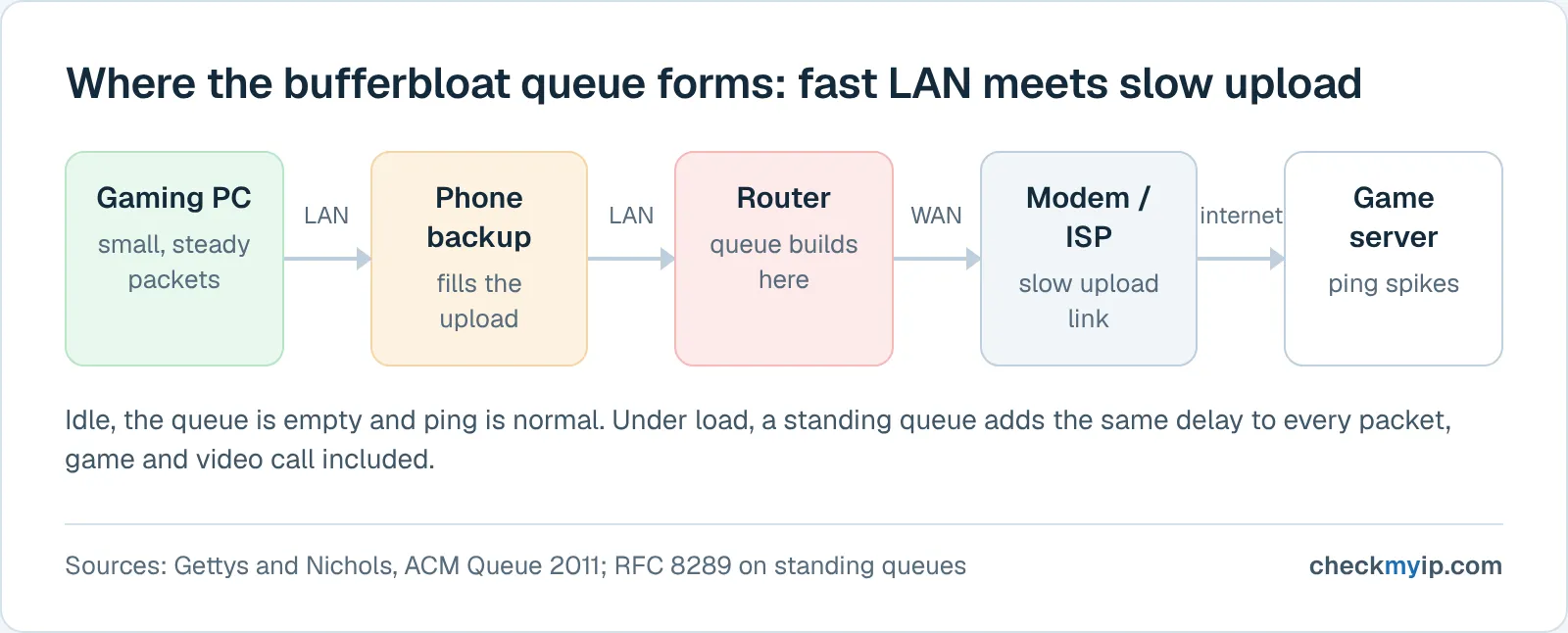
The queue forms at the slowest link on your path. In a home that is almost always the point where a gigabit LAN meets a much slower upload. A laptop hands packets to the router faster than the upload can drain them, so the router's buffer fills. Whatever sits behind the backup has to wait its turn. Jim Gettys and Kathleen Nichols, in the 2011 ACM Queue article that brought the problem to wide attention, described it as the existence of excessively large and frequently full buffers inside the network. Gettys measured more than a second of added latency at his own home router during an ordinary upload.
Why did buffers grow so large? Memory got cheap; RFC 8289 notes that memory density "fueled an exponential increase in buffer pool size". But TCP relies on a dropped or marked packet as its signal to slow down. A buffer that absorbs everything hides congestion from the sender until it is full, so the sender keeps pushing and the delay keeps growing. RFC 7567 therefore recommends that network devices "SHOULD implement some AQM mechanism to manage queue lengths, reduce end-to-end latency".
What bufferbloat feels like
The signature is latency that tracks activity, not a speed problem. Your download speed is as advertised and your idle ping is fine. Then someone in the house starts something heavy, and everything interactive goes bad at once:
- A game's ping jumps from 30 ms to several hundred and comes back when the upload finishes.
- A video call freezes or drops audio while a laptop syncs photos, then recovers by itself.
- Web pages hang for seconds, then all load at once, while a large file is uploading.
The common thread is upload. Cable and DSL plans give far less upload than download, so one phone backing up video can saturate the upstream for minutes. Downloads can bloat too, but on asymmetric lines the upstream buffer fills first and stays full longest.
If your ping is high all the time, including when nothing else is running, that is a different problem: distance, routing, Wi-Fi or a congested provider. The why is my ping so high guide covers that case. This one is about ping that is fine until the line gets busy.
How to test for bufferbloat
A bufferbloat test compares latency when the line is idle with latency while it is saturated. The bufferbloat.net project describes starting a continuous ping and then a speed test, and watching whether "the times jump up when uploading or downloading". The IETF's Responsiveness Test draft standardizes the same idea, measuring round trips "under working conditions, not only in idle conditions". You do not need a terminal; the steps below were checked against the live test pages in November 2026.
- Plug the computer you are testing from into the router with an Ethernet cable if you can. Wi-Fi adds its own jitter and queueing, and you want to measure the line, not the air.
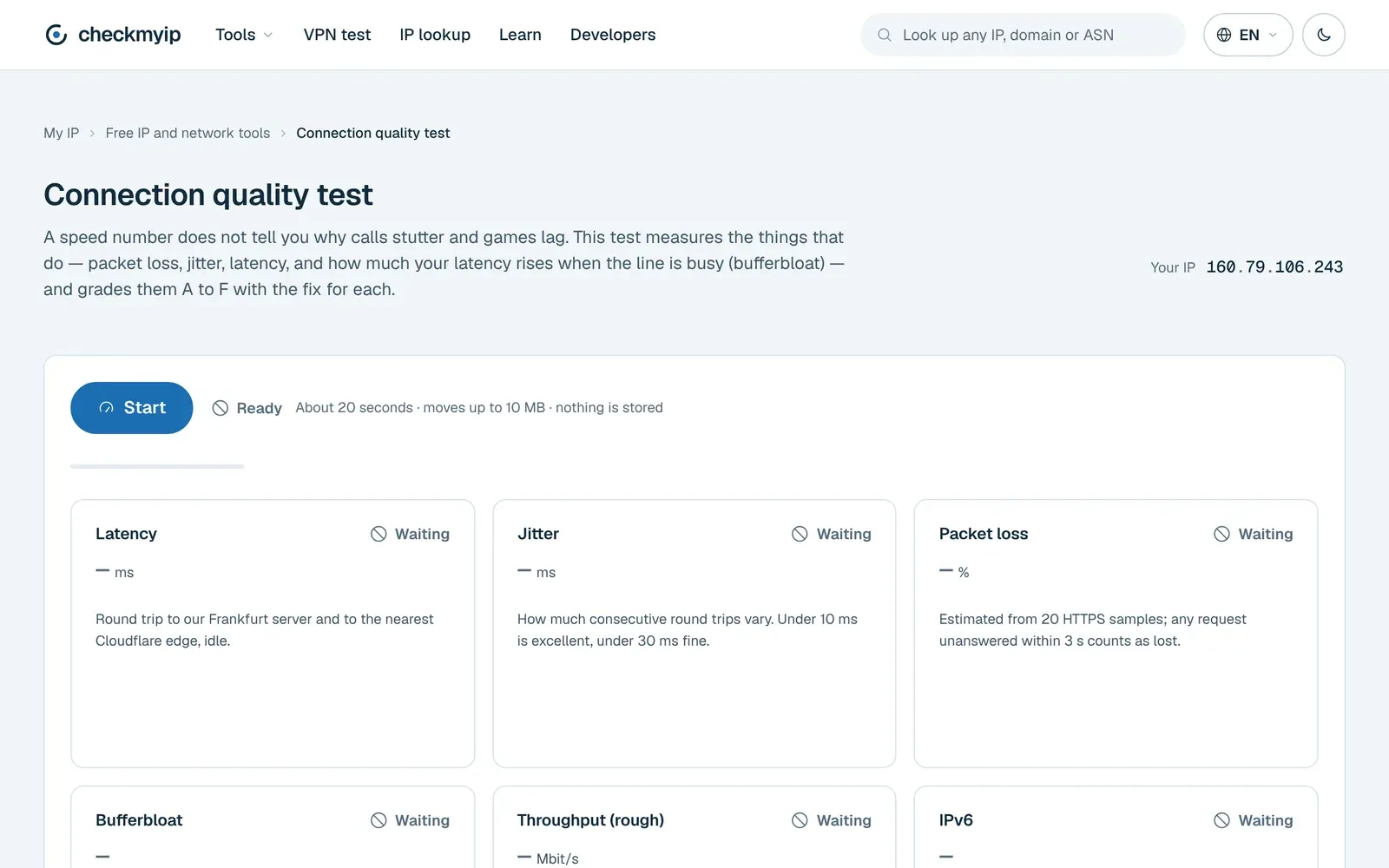
- Stop anything heavy on the network, then open the connection quality test and press Start. It measures idle latency with ten samples, then keeps measuring latency while it downloads and then uploads for a few seconds each. It reports idle and loaded latency, jitter, packet loss, rough throughput and a bufferbloat grade from A to F.
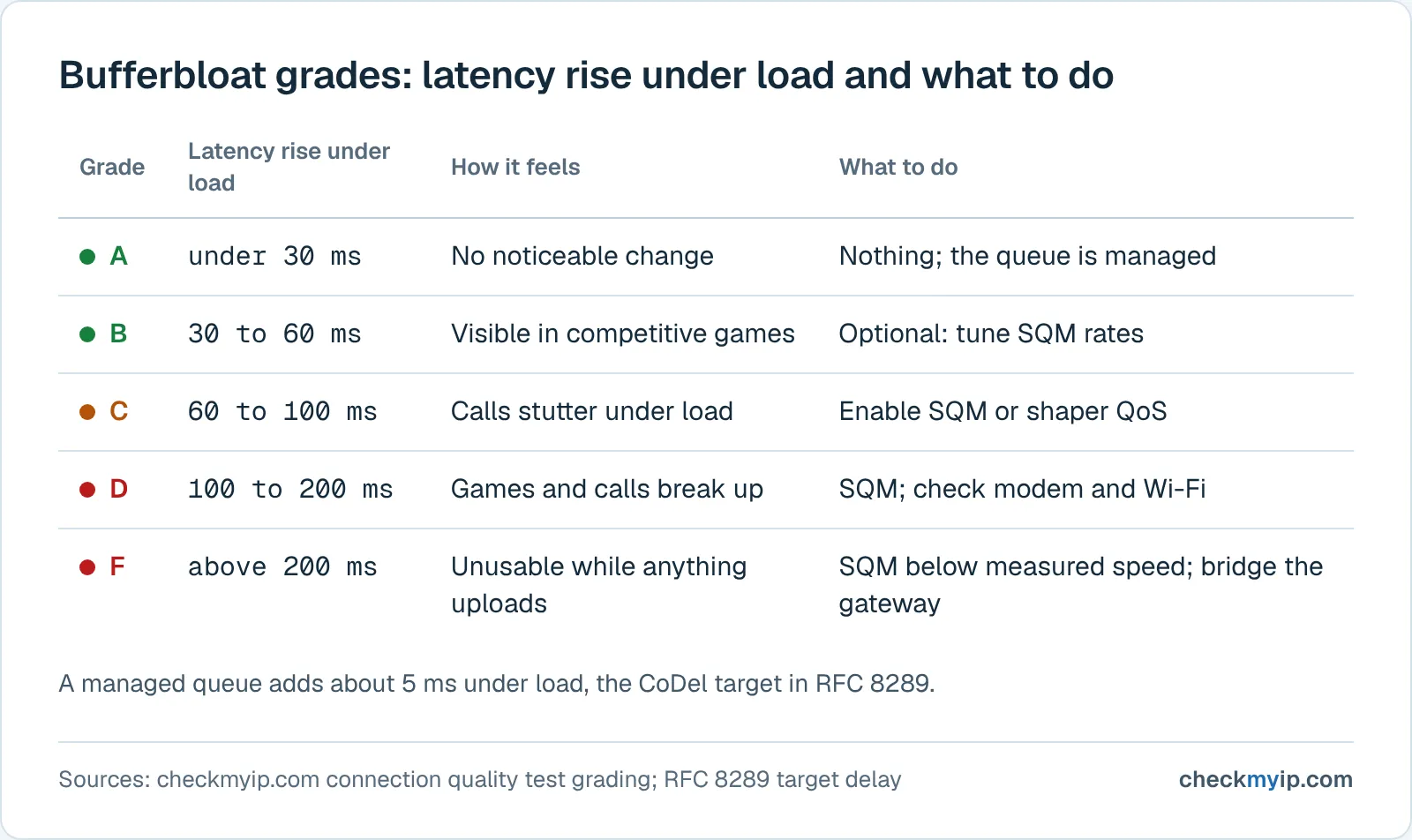
- Read the Bufferbloat card. The grade reflects how much latency rose under load: A is a rise under 30 ms, B under 60, C under 100, D under 200, and F is above that. Note which phase produced the rise; on most cable and DSL lines it is the upload.
- Confirm the idle baseline. The ping test sends ten HTTPS samples to the test server and to the nearest Cloudflare edge with no load at all, and reports minimum, median, maximum, jitter and loss. If ping is low and steady here but climbed in step 3, the delay comes from your own queue.
- Repeat the connection quality test on Wi-Fi from where you normally play or work. If the grade falls only on Wi-Fi, part of the problem is the wireless link rather than the modem. The speed test shows the same idle and loaded latency next to full download and upload figures if you want the numbers at peak throughput.
What the numbers mean
A well-managed line moves only a few milliseconds when a transfer starts: RFC 8289 says the CoDel target "SHOULD be set to 5 ms for normal Internet traffic", so a router running it adds roughly that under load. A rise of 30 to 60 ms (grade B) is noticeable in competitive games but survivable for calls. Above 100 ms (C or worse) calls stutter; above 200 ms (D and F) the connection is effectively unusable for anything interactive while the transfer runs. Our page labels C or worse as fixable, and the fix usually moves the grade several letters at once.
What causes bufferbloat
Four places on a home connection can hold the queue.
The router's WAN queue. The most common case. The router accepts traffic at LAN speed and drains it toward the modem at the plan's rate; the difference piles up in a FIFO buffer that most consumer firmware never manages. This is the queue SQM replaces.
The modem or ISP gateway. Cable modems historically shipped with deep upstream buffers. CableLabs now requires an active queue management algorithm, DOCSIS-PIE, on DOCSIS 3.1 cable modems because, in the words of RFC 8034, "the impact of buffering and bufferbloat in the cable modem" has "a significant effect on user experience". An older DOCSIS 3.0 modem, or a DSL modem with a large transmit buffer, keeps the problem even if your router is well behaved, unless the router is told to shape below the modem's rate.
The Wi-Fi link. Wi-Fi drivers and access points buffer heavily too, and the air is a shared, variable-rate link. A device far from the access point can see queueing that has nothing to do with the modem; Gettys also found Wi-Fi driver buffers to be a source.
The provider's side. Downstream bloat happens at the ISP's equipment, where the fast core squeezes into your slower access link. It shows in the download phase of the test, and you can only partly control it from home, by shaping inbound traffic slightly below the delivered rate so the queue forms in your router instead.
How to fix bufferbloat
The cure is to make the queue form in a device that manages it, and to keep it short. The options below are in rough order of how much they help.
A router with SQM (CAKE or fq_codel)
Smart queue management replaces the router's FIFO with a shaper plus an active queue management algorithm. FQ-CoDel, standardized in RFC 8290, gives each flow its own queue so a bulk upload cannot block a game's packets ("the intention of FQ-CoDel's scheduler is to give each flow its own queue"), and drops or marks packets early enough that senders slow down before delay builds. CAKE, in the words of its Linux manual page, is "a shaping-capable queue discipline which uses both AQM and FQ", with overhead compensation for DSL and DOCSIS framing built in. OpenWrt-class firmware (OpenWrt 22.03 or newer, per bufferbloat.net) exposes both through its SQM package; the prosumer and open-source platforms listed by the bufferbloat.net project ship the same algorithms under their own names.
Three settings matter:
- Apply SQM on the WAN interface, the one facing the modem, so that it governs the slow link.
- Measure your download and upload speed with SQM off, then enter rates a little below those figures. This is what makes your router, rather than the modem or the ISP, the place where the queue forms. Common practice is to start a few percent to about fifteen percent below measured speed and raise the numbers until latency under load starts to climb again. The bufferbloat.net guidance is the same: enter the measured values, then adjust "until the latency remains low while achieving good speeds".
- Pick the link-layer option that matches your line so the shaper accounts for the real on-wire packet size. OpenWrt's SQM screen offers "ATM" (ADSL) and "Ethernet with overhead" (VDSL, cable, fibre); CAKE's own keywords (atm, ptm, docsis) go in the advanced qdisc options.
Then re-run the connection quality test. An F or D typically becomes an A or B, at the cost of a few percent of peak throughput, because the shaper holds the link just below saturation. SQM also needs CPU: on very fast lines a low-end router may not keep up, which shows as the shaped speed falling well below the configured rate.
QoS or a gaming mode on a consumer router
Many stock routers have a QoS, traffic prioritization or gaming mode. Some are a real shaper with fq_codel underneath; others only re-order a few packet types and barely touch the queue. The connection quality test tells you which kind you have: turn it on, set the bandwidth figures just under your measured speed if it asks, and compare the grade before and after.
Put the ISP gateway in bridge mode
If the provider's box is routing and your own router sits behind it, you have two queues. Bridge mode on the gateway (or a plain modem) lets your SQM router own the connection, and removes the double NAT that complicates gaming.
Wire the devices that matter
An Ethernet cable from the gaming PC or console to the router removes Wi-Fi queueing and interference entirely. Where a cable is impossible, 5 GHz with a strong signal and a close access point is the next best thing; step 5 above shows how much that is worth.
Check whether your cable modem is DOCSIS 3.1
A DOCSIS 3.1 cable modem manages its upstream queue with DOCSIS-PIE, which that specification requires, and your provider may have enabled Low Latency DOCSIS, which CableLabs says can be added to "an existing DOCSIS 3.1 network through a simple, cost-effective software update". That handles the modem's own buffer, not your router's queue or your Wi-Fi, so SQM on the router still matters. Replacing an old DOCSIS 3.0 modem is a fix in its own right where the test points at the upload phase.
Symptom, likely cause and fix
| What you see in the tests | Likely cause | What fixes it |
|---|---|---|
| Idle ping fine; loaded latency rises mostly in the upload phase | Router WAN queue or modem upstream buffer | SQM on the router with upload rate set below measured; DOCSIS 3.1 modem on cable |
| Rise mostly in the download phase | Queue at the ISP side of your access link | SQM with download rate a little below delivered speed, so the queue moves into your router |
| Grade good on cable, poor on Wi-Fi | Wireless link queueing or weak signal | Cable the device; 5 GHz, closer access point |
| Grade poor with SQM on, speeds far below configured rates | Router CPU cannot shape at that speed | Lower the rates, or a router with more CPU |
| High idle ping, little extra rise under load | Not bufferbloat: distance, routing, provider congestion | See the ping guide; nothing in the home will change it |
| Loss appears only under load | Saturated link with an overflowing queue | Same SQM fix; re-test for loss afterwards |
What does not fix bufferbloat
A faster plan. More bandwidth moves the saturation point but does not remove the queue; the buffer still fills whenever a transfer runs at full speed, and on cable the upload tier often barely changes. The bufferbloat.net project is blunt about it: "link speed isn't the problem", and delay from an oversized buffer "can never be cured by faster transmission rates".
A more expensive router with no queue management. Price does not predict whether a router manages its queue; look for SQM, CAKE, fq_codel or a shaper-based QoS in the firmware.
Bufferbloat and gaming
Games send small packets at a steady rate and use very little bandwidth. That makes them the perfect victim of bufferbloat: they never fill the link themselves, yet every packet waits in the same queue as a housemate's upload. The result is a ping that is excellent in a lobby and spikes mid-match whenever something else on the network wakes up.
Measure the connection quality grade from the gaming device's position, on the connection it actually uses. A or B under load, with clean idle figures from the ping test and no loss (see the packet loss guide), means the home network is not the bottleneck and any remaining lag is distance or the game's servers. C or worse means the fixes above, starting with SQM, will do more for your match than any in-game setting.
Sources
- Bufferbloat: Dark Buffers in the Internet (Gettys and Nichols, ACM Queue, 2011)
- bufferbloat.net: Introduction
- bufferbloat.net: Tests for Bufferbloat
- bufferbloat.net: What Can I Do About Bufferbloat?
- RFC 8289: Controlled Delay Active Queue Management
- RFC 8290: The Flow Queue CoDel Packet Scheduler and Active Queue Management Algorithm
- RFC 7567: IETF Recommendations Regarding Active Queue Management
- RFC 8034: Active Queue Management Based on PIE for DOCSIS Cable Modems
- CableLabs: Low Latency DOCSIS
- tc-cake(8) Linux manual page
- IETF draft-ietf-ippm-responsiveness: Responsiveness under Working Conditions
Questions
What causes bufferbloat?
Oversized, unmanaged first-in-first-out buffers at the slowest point of your path, usually the upload side of a home modem or router. When a bulk transfer fills the link, the buffer fills too, and every packet waits for the whole queue to drain. Cheap memory made the buffers large; nothing in a plain FIFO queue tells senders to slow down earlier.
How do you fix bufferbloat without SQM?
Options are limited. A consumer router's QoS or gaming mode can shorten the queue a little; a DOCSIS 3.1 cable modem manages its upstream queue by itself; and keeping one device on a cable removes Wi-Fi delay. None of them controls the queue the way a shaper with CAKE or fq_codel does, so the grade improves less.
Can you fix bufferbloat on a PC or with a CMD command?
No. The queue that causes bufferbloat sits in the modem, router or ISP equipment, not in your computer, so no Windows setting, network adapter tweak or command-line change can remove it. A PC can only measure it. The fix has to run on the device that feeds the slow link, which is your router or modem.
Does bufferbloat affect gaming?
Yes, and it is one of the most common causes of lag on fast connections. A game needs a steady round trip, and bufferbloat adds hundreds of milliseconds whenever another device uploads, streams or updates. Idle ping looks fine, which is why speed tests do not catch it. Measuring latency under load does.
Back to your own address: my IP address