192.168.1.254: Router Login, Access Fixes and Your Real IP
192.168.1.254 is the admin address of AT&T, BT, EE and Plusnet routers. How to log in, where the password is printed, why the page won't open, and your real IP.
 Kevin McDonnell 9 min read
In this guide
192.168.1.254 is a private IPv4 address that AT&T Wi-Fi gateways, BT and EE Smart Hubs and Plusnet hubs use as their admin page. Type 192.168.1.254 into the address bar of a browser on a device connected to that router, then sign in with the password printed on the device label or settings card. It is not your public IP.
Test it now
Cloudflare edgeRead at the Cloudflare edge from this request. The homepage adds your provider, network type and the VPN, DNS and WebRTC checks.
Show details
What 192.168.1.254 is
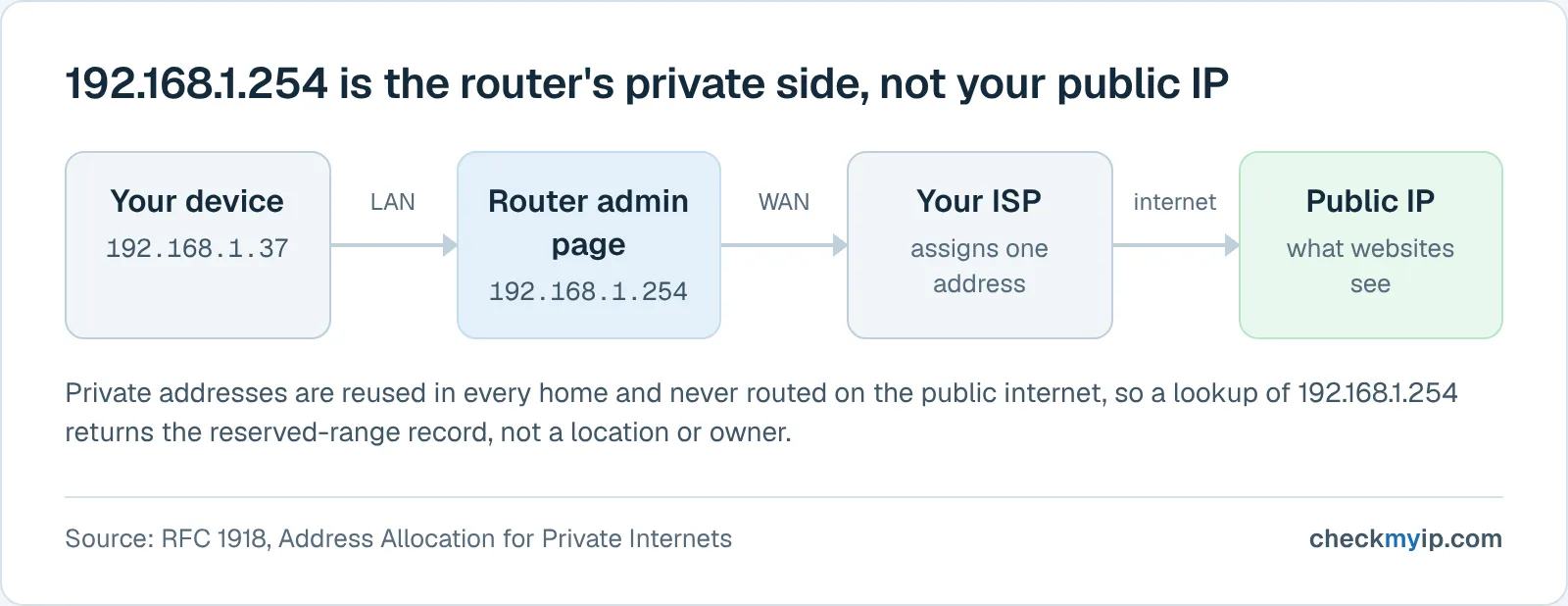
192.168.1.254 is the last usable address in the 192.168.1.0/24 block. Some router makers pick it as the router's own address instead of the more common 192.168.1.1. The whole 192.168.0.0 to 192.168.255.255 range is reserved for private networks by RFC 1918. That is why the address is never handed to a website and never routed across the public internet. Every router that uses it answers only on its own local network, which is why the same four numbers open a different admin page in every home.
Because it is private, there is nothing to "look up" about 192.168.1.254 itself. A WHOIS or geolocation query for it returns the reserved-range record, not a place or an owner. If you landed here from a search for the address, you almost certainly want one of three things. You want to log in to the router, to work out why the page will not open, or to find the public address your ISP actually gave you. The sections below take them in that order.
Which routers and ISPs use 192.168.1.254
Vendors that use 192.168.1.254 as the default gateway include AT&T, BT, EE and Plusnet; their support pages confirm it. Each one also tells you where the admin password is printed, so you never need a list of default passwords from a third-party site.
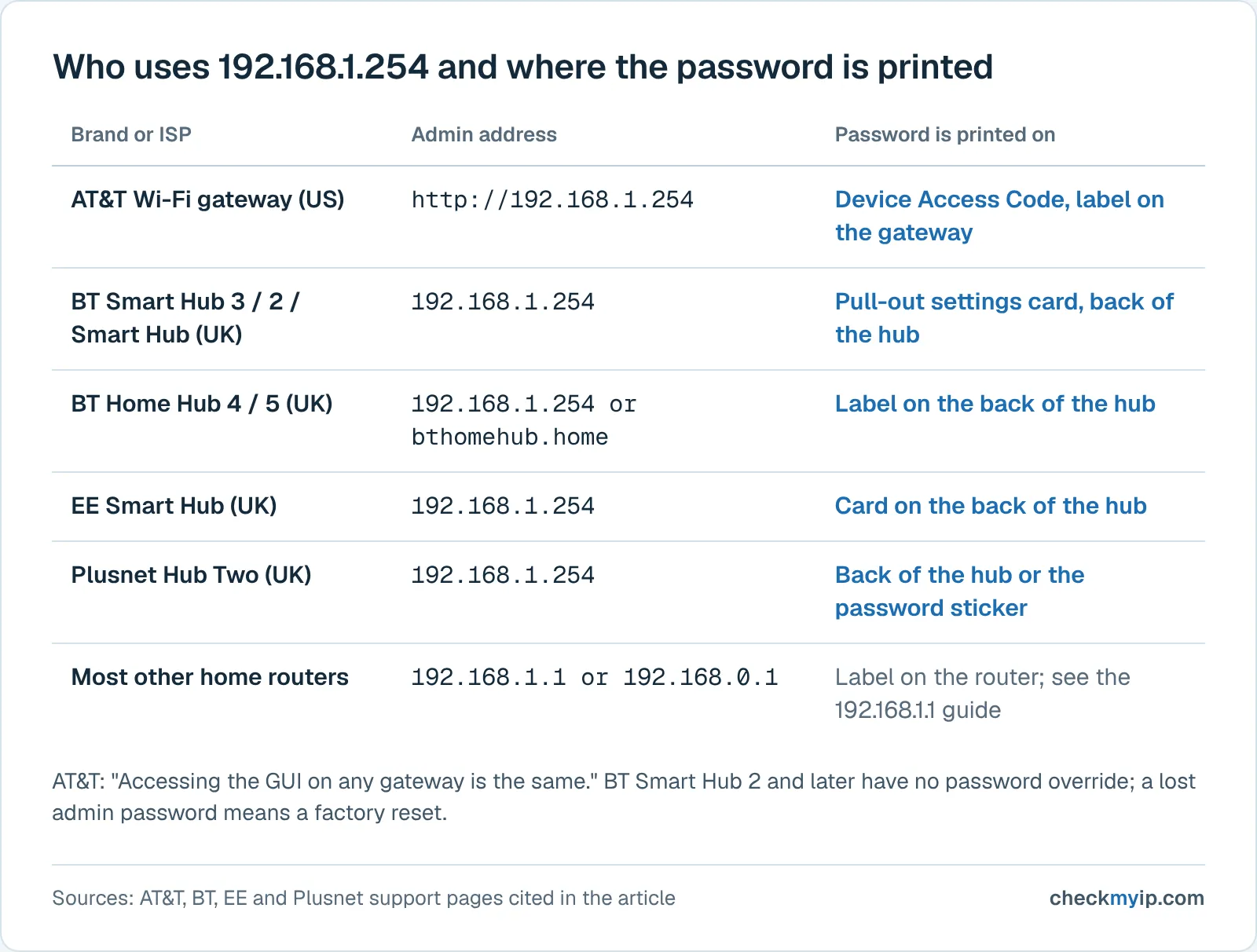
| Brand or ISP | Default gateway | Where the admin password is printed | Official page |
|---|---|---|---|
| AT&T Wi-Fi gateway or All-Fi Hub (US) | http://192.168.1.254 | Device Access Code on the label on the gateway | Gateway User Interface for Wi-Fi gateways |
| BT Smart Hub 3, Smart Hub 2, Smart Hub (UK) | 192.168.1.254 | Hub settings card on the back of the hub | Set up or change BT Hub password |
| BT Home Hub 4 and Home Hub 5 (UK) | 192.168.1.254 or bthomehub.home | Label on the back of the hub | Same BT page |
| EE Smart Hub (UK) | 192.168.1.254 | Card on the back of the hub | Change the WiFi password and admin password on your hub |
| Plusnet Hub Two (UK) | 192.168.1.254 | Back of the hub or the password sticker Plusnet sent | How to use your Plusnet router - Hub Two |
AT&T's page makes one useful point: "Accessing the GUI on any gateway is the same." Whether the box is a current Wi-Fi gateway or an older Motorola NVG, 2Wire or Pace unit, the address AT&T documents is the same http://192.168.1.254. BT, EE and Plusnet all call the admin page Hub Manager and all document the same address, and BT's page shows that the older Home Hub 4 and Home Hub 5 also answer at https://bthomehub.home.
If your router is not in this table, it probably does not use 192.168.1.254 at all. Most other home routers default to 192.168.1.1 or 192.168.0.1, and the fix for a page that will not open is to find your real gateway, covered below.
How to log in at 192.168.1.254 (including AT&T router login)
Logging in takes four steps on any device that is already connected to the router. The steps are the same on a phone, a laptop or a desktop.
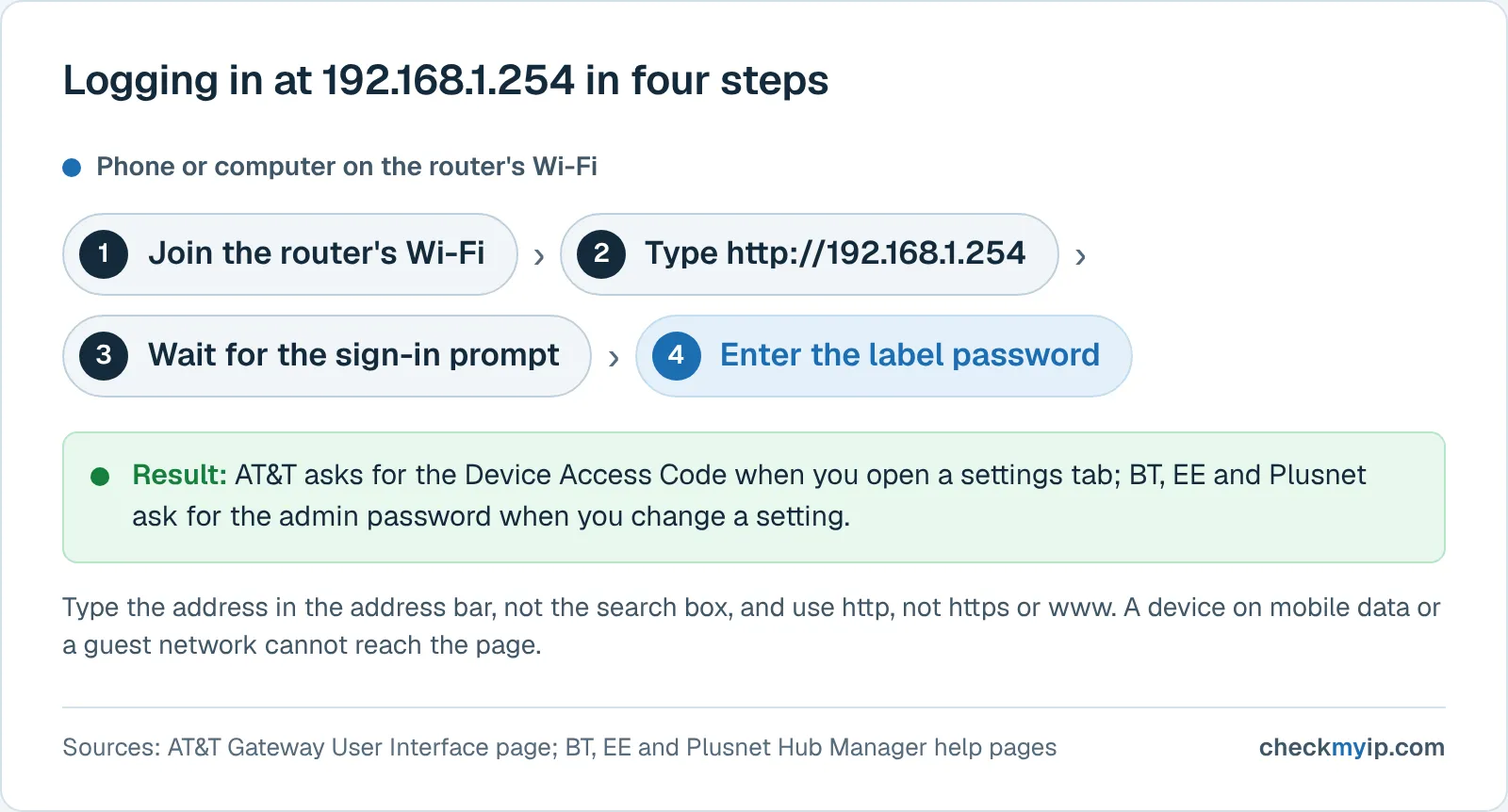
- Connect to the router's own network. Join its Wi-Fi name or plug in an Ethernet cable. A device on mobile data, a guest network or a neighbor's Wi-Fi cannot reach the page.
- Open a browser and type
http://192.168.1.254in the address bar, then press Enter. Type it in the address bar, not the search box, or you get search results about the address instead of the page. - Read the sign-in prompt. AT&T gateways show the status page first and ask for the Device Access Code when you open a settings tab. BT, EE and Plusnet hubs open the Hub Manager and ask for the admin password when you change a setting.
- Enter the password from the label or card, as the table above describes for your brand, and select the setting you came for: Wi-Fi name and password, connected devices, port forwarding, or a restart.
On BT and EE hubs the admin password is separate from the Wi-Fi password, and BT's help page notes that the Smart Hub 2 and later have no password override. If you changed the admin password and lost it, the only route back on those models is the pinhole reset, which also wipes your Wi-Fi settings. AT&T says the same about a lost Device Access Code: hold the Reset button to return the gateway to its factory code.
192.168.1.254 not working: the checks in order
When 192.168.1.254 refuses to load, the cause is almost always one of the eight below. Work through them from the top; the first three cover most cases.
- Your router does not use this address. This is the usual reason. Run
ipconfigon Windows and read the Default Gateway line. On a Mac, open the active connection's Details and read the Router field. On Linux, runip routeand read the address afterdefault via. Open whatever address you see there instead. - You typed a letter instead of a number. The address is all digits. The common slip is a lowercase L in the third group, written as 192.168.l.254, which the browser treats as a web address and sends to a search engine or an error page.
- You added https, www or a search term. Type
http://192.168.1.254exactly. There is no www, and if the browser upgrades the request to https on a router that only serves http, the page will not load. - A security warning stops you. EE explains that its hub uses a self-signed certificate, so a browser that reaches the Hub Manager over https shows a warning. EE says it is safe to proceed: select Advanced, then the option to continue to 192.168.1.254. The same warning appears on other hubs that serve https locally.
- You are on the wrong network. Phones fall back to mobile data, laptops stay on a hotspot, and a device on a guest network is walled off from the admin page. Check the Wi-Fi name you are connected to.
- A VPN is connected. A VPN that routes all traffic through its tunnel sends your request for 192.168.1.254 to the VPN server, which has no such device. Disconnect the VPN, load the page, then reconnect.
- The gateway is in bridge or passthrough mode. AT&T's IP Passthrough shares the gateway's WAN address with one device behind it; older 2Wire and Pace units call the same feature DMZplus. In that setup your own router hands out addresses, so its admin page, usually 192.168.1.1 or 192.168.0.1, is the one to open.
- The router is not finished booting. A hub that was just power-cycled answers nothing for a minute or two. Wait until the status light is steady and try again.
Browser cache is rarely the problem, but if the page loads half-drawn or shows an old login form, a private window or a different browser rules it out in seconds.
How to find your real gateway address
Your real gateway address is the one your device lists as Default Gateway or Router, and it is printed by every operating system. Microsoft's documentation for ipconfig says that, used without parameters, it "displays Internet Protocol version 4 (IPv4) and IPv6 addresses, subnet mask, and default gateway for all adapters". The command works the same way on Windows 10 and Windows 11. On Linux, ip route prints the routing table and the default via entry is the gateway, as the ip-route manual page documents.
The local IP page shows the private address your browser is willing to reveal and explains the 192.168.x, 10.x and 172.16.x ranges. Modern browsers hide the local address behind a random .local name, so the page usually cannot read it directly; instead it lists the exact menu path for Windows, macOS, Linux, iPhone and Android. The guide to finding your router's IP address walks through each of those menus with the current labels. If the word "gateway" is new to you, start with what a default gateway is.
If the gateway turns out to be 192.168.1.1, the 192.168.1.1 login guide covers the brands that use it and the same not-opening checks for that address.
192.168.1.254 is not your public IP
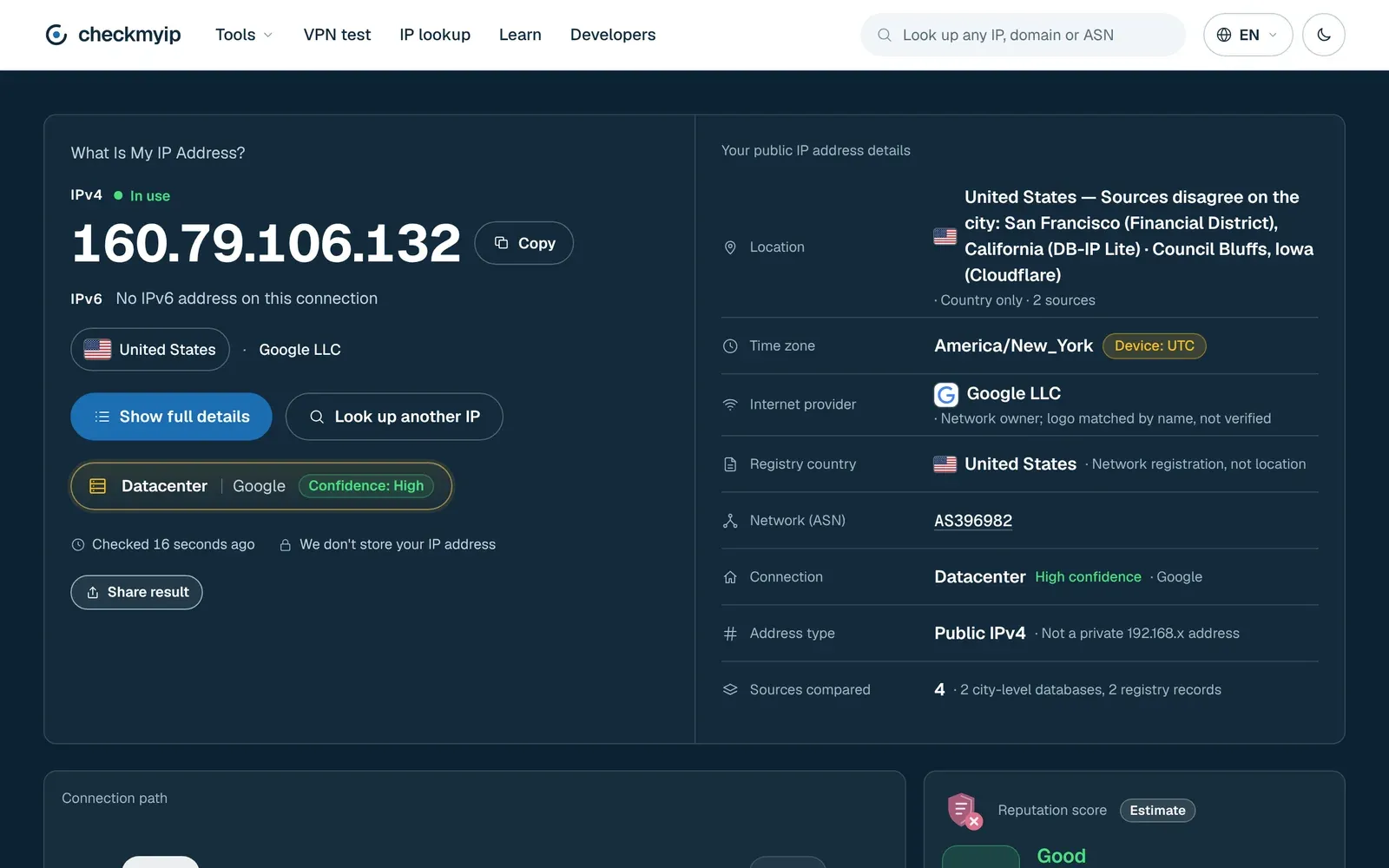
192.168.1.254 identifies your router inside your home; your public IP is the single address your ISP assigns to the router's internet side, and it is what every website sees. The two never match, and searching for 192.168.1.254 will never tell you what the outside world sees.
To see the public address, open the what is my public IP page from any device on your network. The homepage shows the IPv4 and, where present, the IPv6 address your connection is using, plus the ISP and ASN behind it, the connection type and an approximate map. Everything is computed from the request itself; nothing about the visit is stored. Load it from your phone on Wi-Fi and again on mobile data and you will see two different public addresses. The router page at 192.168.1.254 only ever works on the first.
The public vs private IP guide explains how the router translates between the two with NAT, and why your router's own page may show a 100.64.x.x address on its WAN side when the ISP uses carrier-grade NAT. In that case even the router does not hold the address the internet sees, and the homepage is the only place to read it.
Lock the admin page once you are in
The first setting to change after a successful login is the admin password or access code, because the printed default is readable by anyone who can see the router. AT&T warns that anyone connected to your network can use the default access code to lock you out or grant themselves privileges. Its gateway settings let you set a custom code. BT, EE and Plusnet all put the admin password change under the Hub Manager's settings.
Write the new code on paper and keep it with the router, not in a note on a device that may be reset. Then check two more things while you are logged in. Remote management or remote access should be off, so the admin page is reachable only at 192.168.1.254 inside the house. And if the settings card has ever been photographed or shared, the Wi-Fi password should no longer be the one printed on it. Neither change affects your public IP; the homepage will show the same address before and after.
Sources
- RFC 1918: Address Allocation for Private Internets
- AT&T Support: Gateway User Interface for Wi-Fi gateways
- AT&T Support: Change your Wi-Fi info
- AT&T Support: Change your Wi-Fi gateway access code
- AT&T Business Support: Configuring IP Passthrough and DMZplus
- BT Help: Set up or change BT Hub password
- EE Help: Change the WiFi password and admin password on your hub
- EE Help: Security warning when accessing the Hub Manager
- Plusnet Help: How to use your Plusnet router - Hub Two
- Microsoft Learn: ipconfig
- man7.org: ip-route(8) Linux manual page
Questions
How do I login to my 192.168.1.254 router?
Connect to the router's Wi-Fi or plug in an Ethernet cable, open a browser and type http://192.168.1.254 in the address bar. When the sign-in box appears, enter the admin password or Device Access Code printed on the label or pull-out card of the router. If that fails, check the troubleshooting list above.
Why is 192.168.1.254 not opening?
Usually because your router does not use that address. Run ipconfig on Windows or ip route on Linux and open the Default Gateway shown instead. Other common causes are a letter L typed in place of the 1, a VPN that is still connected, being on a different network, or an ISP gateway that has been put into bridge mode.
How do I log into my AT&T router?
AT&T says to enter http://192.168.1.254 in a browser connected to the gateway. The settings pages ask for the Device Access Code, which AT&T prints on the label on the gateway itself. If you changed the code and lost it, the Reset button returns the gateway to the factory code.
How do I login to my modem admin?
Find the modem's own address first: on Windows it is the Default Gateway in ipconfig, on a Mac it is the Router field in Network settings. Open that address in a browser and sign in with the credentials on the device label. A pure modem in bridge mode may have no admin page; your router behind it does.
Is 192.168.1.254 reserved?
Yes. RFC 1918 sets aside 192.168.0.0 to 192.168.255.255 for private networks, so 192.168.1.254 is never assigned to a website or routed on the public internet. Every router that uses it only answers on its own local network, which is why the same address works in millions of homes.
Back to your own address: my IP address